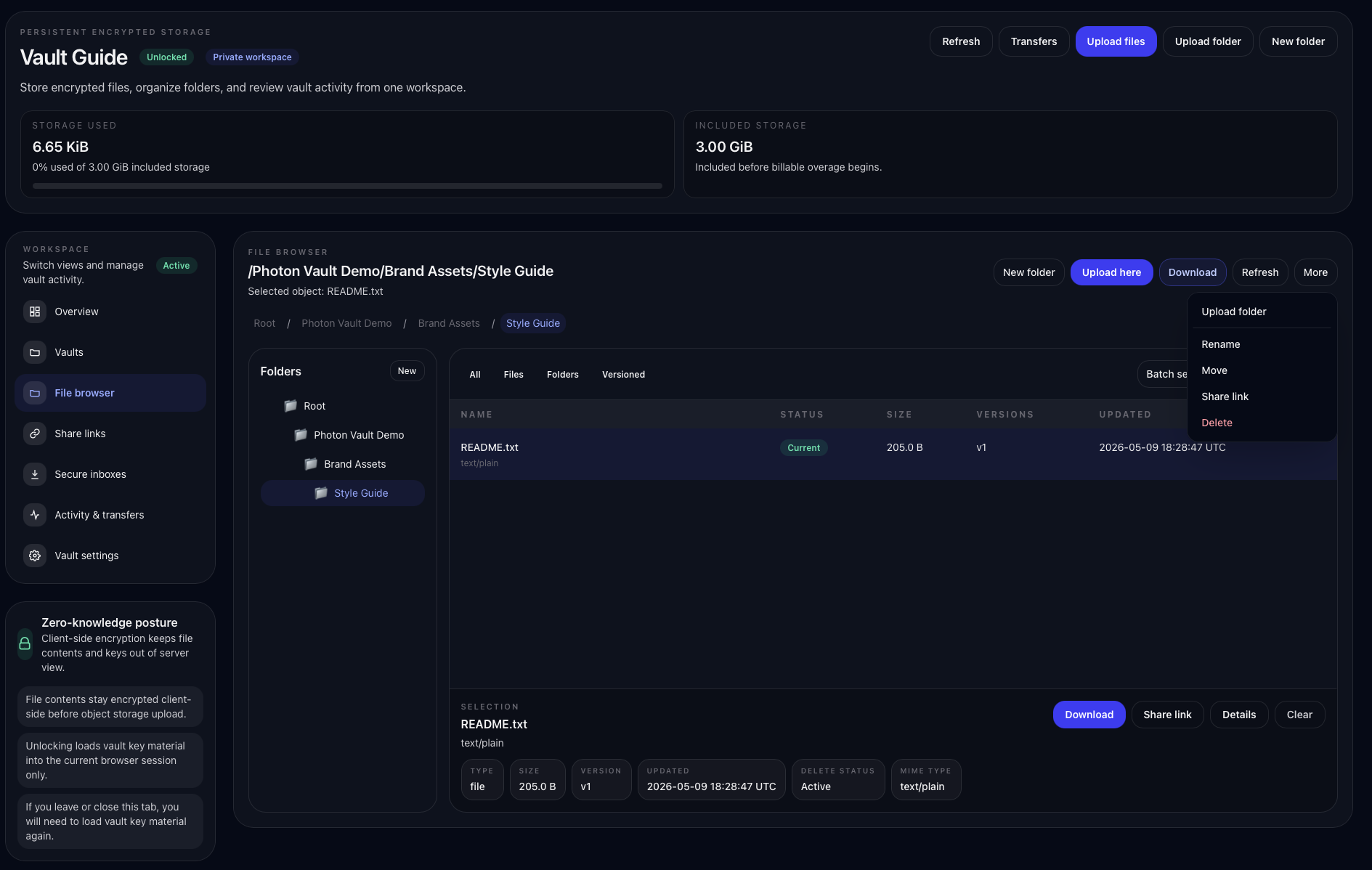
Create folders
Use folders for clients, projects, dates, or deliverables. A simple folder structure makes sharing and downloading easier later.
Step 2 of 7
Upload, download, and organize files
Vault works like a secure file workspace. Unlock the active vault, upload files, create folders, and download what you need later.
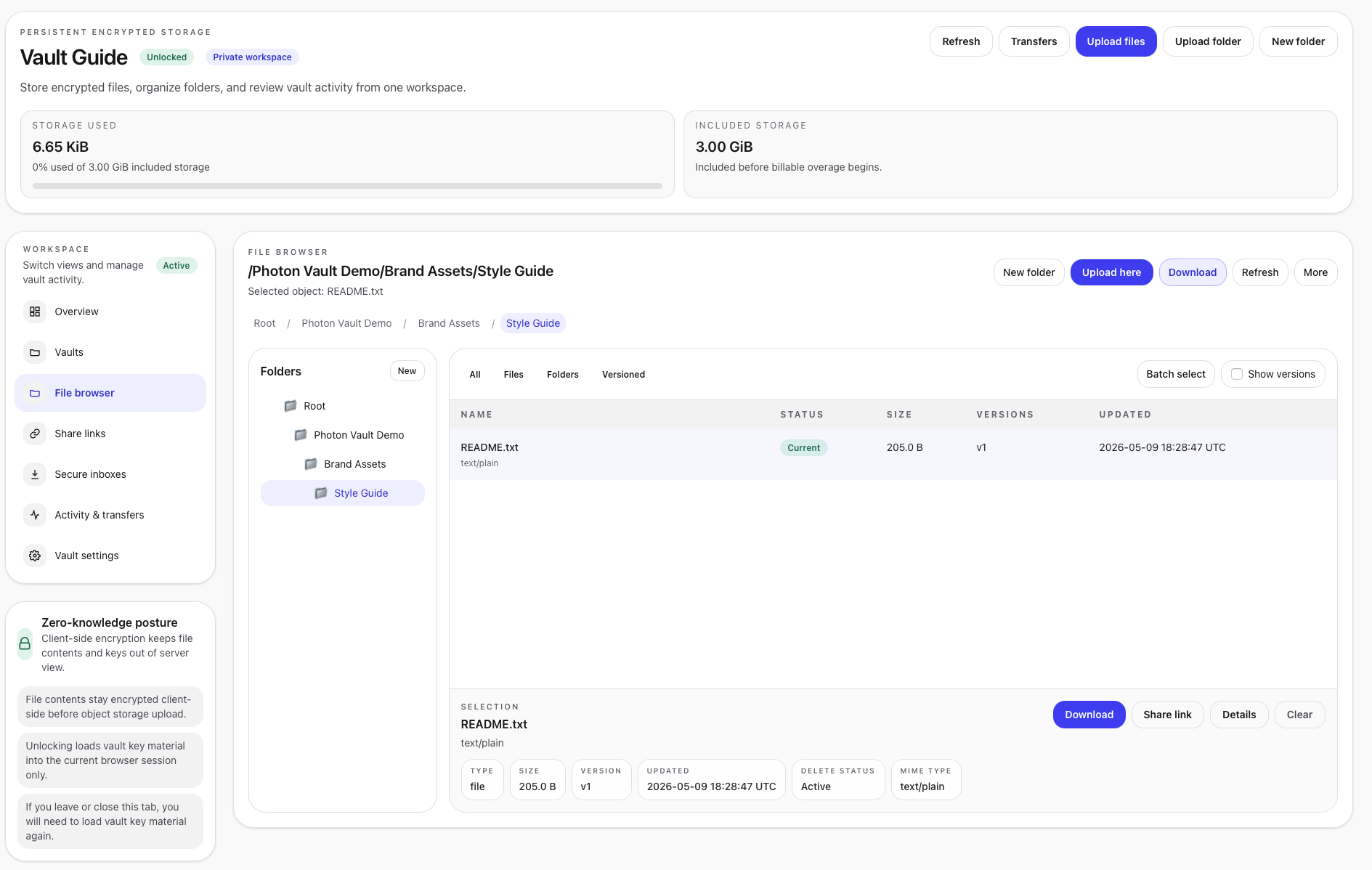
New empty (zero-byte) files cannot be uploaded. They are skipped when a selection also contains files with content. Existing empty files already in your Vault remain accessible.
Use folders for clients, projects, dates, or deliverables. A simple folder structure makes sharing and downloading easier later.
In the browser, select a file to save it directly. Multiple files stream into one destination folder while keeping their folder structure, with up to four files downloading at once. After Vault scans a selected folder, choose Save file for a one-file result or Choose folder for multiple files. Existing files and folders are preserved by adding numbered suffixes to conflicting names.
Saving multiple files requires directory-saving support. If your browser does not support this, use individual-file downloads or PhotonFile Desktop. Keep the tab open until completion. Cancellation or a failure stops the transfer and preserves files already saved. Browser downloads do not export empty folders. Desktop preserves selected empty folders.
Continue the guide
Export one eligible current file from Desktop to a local directory, then check and decrypt it locally with its matching content-key sidecar. A successful content-key result leaves protected metadata, original key wrapping, and external freshness unverified.
Read the verification guide, privacy boundaries, and signed release instructions.